
Reading time: 1 minute.
Access to Adobe Creative Cloud and Adobe Express is changing. You will now use your Curtin workstation credentials to access any Adobe products you are licensed for.
As part of this change, you may be prompted to complete Multi-Factor Authentication (MFA) when signing in, particularly if you do not already have an active Entra login session.
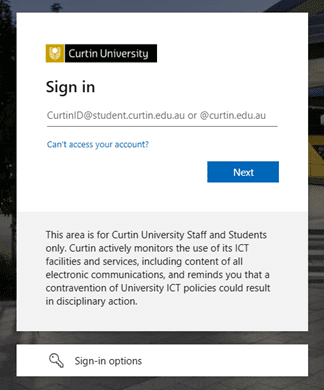
What is Multi-Factor Authentication (MFA)?
Multi-Factor Authentication (MFA) adds an extra layer of security to your account by requiring two forms of verification when logging in. This usually includes:
- Something you know – such as your password
- Something you have – such as a mobile device for authentication
Getting started with MFA
Curtin recommends using the Microsoft Authenticator app on your phone or tablet.
Use the guides below to complete your setup:
- Install the Microsoft Authenticator app on your Apple or Android device.
- Register for MFA on your Apple or Android device.
Or watch the video tutorial:
Need help?
You can find answers to common questions on the MFA help webpage and troubleshooting steps through the following resources:
- Curtin Knowledge Base articles
- Microsoft Common Problems Guide
- Microsoft Authenticator Troubleshooting Guides
- Microsoft Authenticator FAQs
If you require further assistance, please log a request via SupportU.